Sunday, August 25, 2013

In-depth articles in search results

Tuesday, August 06, 2013 at 11:05 AM

Users often turn to Google to answer a quick question, but research suggests that up to 10% of users’ daily information needs involve learning about a broad topic. That’s why today we’re introducing new search results to help users find in-depth articles.

These results are ranked algorithmically based on many signals that look for high-quality, in-depth content. You can help our algorithms understand your pages better by following these recommendations:

    use schema.org “article” markup,
    provide authorship markup,
    rel=next and rel=prev for paginated articles (also watch out for common rel=canonical mistakes),
    provide information about your organization’s logo,
    and of course, create compelling in-depth content.

Following these best practices along with our webmaster guidelines helps our systems to better understand your website’s content, and improves the chances of it appearing in this new set of search results.

The in-depth articles feature is rolling out now on google.com in English. For more information, check out our help center article, and feel free to post in the comments in our forums.

Posted by Pandu Nayak, Member of Technical Staff

Appearing in the "In-depth articles" feature

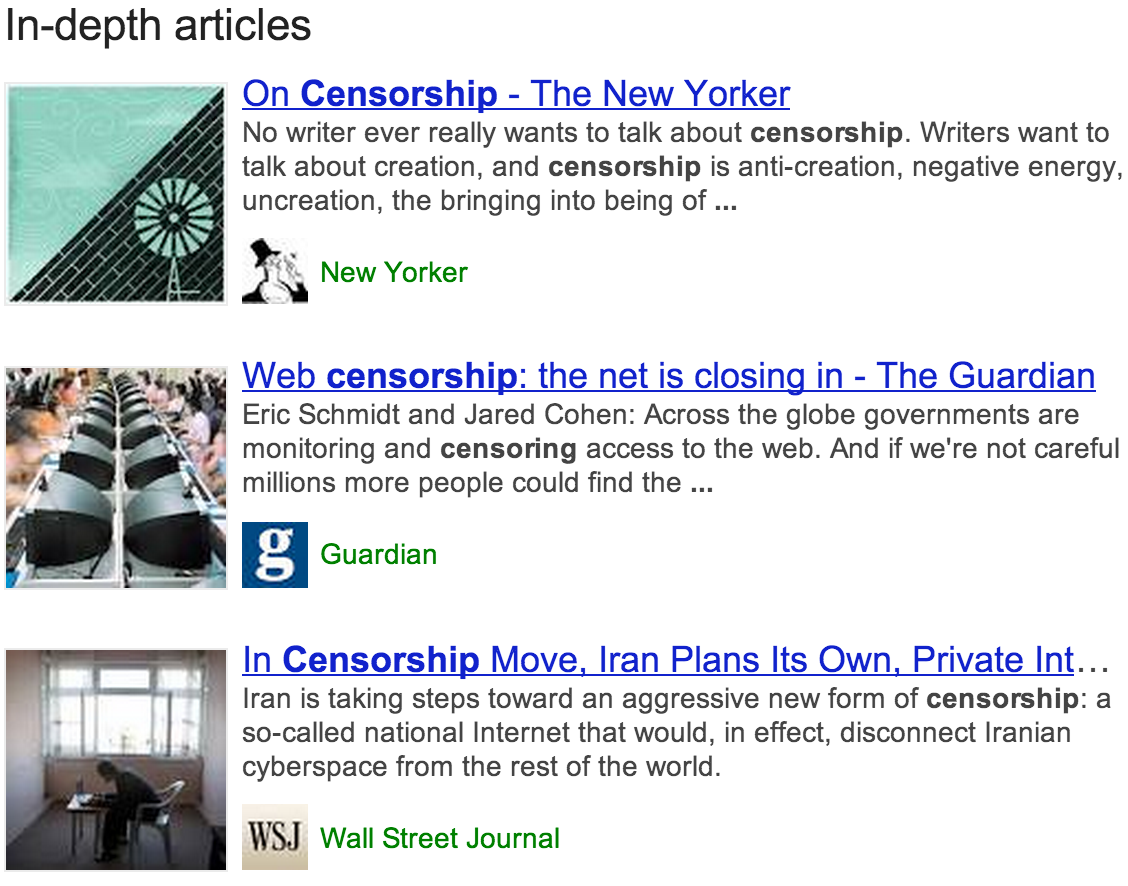
Often when you're searching on Google for a person or organization name, or other broad topic, you'll find a block of search results labeled "In-depth articles." These results provide high-quality content to help you learn about or explore a subject. While the feature is based on algorithmic signals, there are steps you can take as a webmaster to help Google find your high-quality, in-depth content and best present it to users in the search results page. Search result showing in-depth articles feature.
Optimize your site for the "In-depth articles" feature

Schema.org Article markup

In general, we'll do our best to understand the metadata you provide for your pages to better present search results to users. For this feature, it's particularly helpful if you can implement certain aspects of the schema.org Article markup, notably the following attributes:
  • headline
  • alternativeHeadline
  • image (note: the image must be crawlable and indexable)
  • description
  • datePublished
  • articleBody

Authorship markup

Authorship markup helps our algorithms to find and present relevant authors and experts in Google search results. Learn more about authorship.

Pagination and canonicalization

For multi-part content, proper pagination markup using rel=next and rel=prev can help our algorithms correctly identify the extent of those articles. In addition, it’s important that canonicalization is done correctly, with a rel=canonical pointing at either each individual page, or a “view-all” page (and not to page 1 of a multi-part series). Learn more about pagination and canonicalization.

Logos

A logo is a great way help users recognize the source of an article with a quick glance. As a webmaster, there are two ways you can give Google a hint about which logo to use for your website:
  1. Create a Google+ Page and link it to your website. Choose an official logo or icon as the default image.
  2. Use organization markup to specify your logo.
Note that it may take some time for logo changes to be reflected in search results.

Restricted Content & First Click Free

If you offer subscription-based access to your website content, or if users must register for access, then search engines may not be able to access some of your site's most relevant content. If Google can't properly crawl and index your content (including text, images and videos), we can't show it in our search results (including the "In-depth articles" feature). Implementing First Click Free is one easy way to make sure your content is accessible to Google's search crawlers so it can be displayed in Google search results. Learn more about First Click Free.

Monday, September 26, 2011

Create a mobile campaign now and win new customers

Google AdWords

Customer ID: 711-232-5249


Make it easy for smartphone users to
connect to you.

Increase your mobile performance by creating a separate mobile-only campaign.

Hello from Google,

We're writing to remind you that last month, 2.94% of your account's clicks came from mobile devices. Build an effective strategy to meet the growing demand from mobile customers by setting up a dedicated mobile-only campaign.

Average increase in mobile click-through rates with a mobile-only campaign:

11.5%*

A mobile-only campaign targets only mobile devices with full Internet browsers, and is separate from your campaigns that target desktop and laptop computers. Advertisers with mobile-only campaigns have experienced an 11.5% increase in mobile click-through rates compared to those campaigns that target both mobile devices and computers. Boost performance by creating a mobile-optimized campaign, targeted specifically to customers searching on the move.


Improve your performance with a mobile-only campaign.

· Bids and budgets: With a mobile-only campaign, you can bid more aggressively, using a dedicated budget to help get your ads in a top position, particularly important for the limited space on small phone screens. Tip: The more front-page mobile bids you can set, the better your ads should do.

· Keywords: Use the AdWords Keyword Tool to create keyword lists specifically intended for potential smartphone customers and with consideration for their devices' limitations. Tip: Use the Advanced Options and Filters menu in the Keyword Tool to select Mobile devices with full internet browsers to find the keywords that perform best on mobile.

· Ads: Customize your ad text with a smartphone-friendly call-to-action that has strong appeal for on-the-go users. Tip: Good examples are "Visit our mobile site" or "Request a quote from your phone."

· Made-for-mobile features: Take advantage of features such as Location Extensions, Click-to-call and Sitelinks. Tip: These features provide users with more ways to take immediate action, such as calling your business.


How to create a mobile-only AdWords campaign:

Step 1

Step 2

Step 3

Sign in to your AdWords account, then click the Campaigns tab followed by + New campaign. Under Networks and devices, click the Let me choose… radio button for Devices and make sure there is a check mark next to Mobile devices with full browsers only.

Give your campaign a name and set your location, targeting and language, then click Save and continue.

Create an ad group, including an ad, keywords, placements and default bids, then click Save ad group.


Learn more about the benefits of setting up a mobile-only AdWords campaign and watch a video on how to get started.


Best,

Sophie

The Google AdWords Team


Visit the Get Mobilized Website »


Visit Learn with Google »


Find FAQs in our Help Center »


Please share your feedback with us.

*Source: internal Google data

© 2011 Google Inc. 1600 Amphitheatre Parkway, Mountain View, CA 94043.
This email was sent to chandrasekard@dckap.com because you indicated that you'd like to receive occasional AdWords account performance suggestions. If you don't want to receive such emails in the future, please unsubscribe here:
http://www.google.com/appserve/mkt/optout/PVsfgRKkZxCFyfu8GTjyhIiQYt8?e=chandrasekard%40dckap.com&hl=EN_US
You can also change your preferences on your account's Notification settings page by logging into:
https://adwords.google.com/select/EditCommunicationsPreferences


Tuesday, September 13, 2011

Questions about AdWords? We’re extending phone support hours from 8 am - 10 pm EST for a limited time only

Hello from Google!

We recently introduced phone support for all of our U.S.- and Canada-based AdWords advertisers. This is part of an effort to continually find new ways to best support our advertisers. With this in mind we have decided, for a limited time, to trial extending the hours of this support and see if this is helpful to you in managing your business.
From September 6 - September 30th, we'll be taking calls from 8 am - 10 pm Monday - Thursday EST and from 8 am - 8 pm EST on Fridays. You can reach us by dialing: 1-866-246-6453 or 1-866-2-GOOGLE. Please have your Customer ID ( ) ready when you call. We look forward to hearing from you.

Best wishes for success,
Your Google AdWords Team

Monday, September 12, 2011

The +1 button & AdWords

Word of mouth is powerful. When you have a choice to make, it’s common to turn to the people you trust. But what about word of click? How can getting a suggestion from a friend or co-worker when you need it be as simple as having a hallway conversation -- or even simpler?

We want to make it easy for Google users to get recommendations from the people they trust right when they’re searching. That’s why we’re introducing the +1 button. With a single click, the +1 button lets signed-in Google users recommend the content they like on the web to their friends and contacts right when it’s most useful -- on Google search.


+1 is a simple idea. Let’s use a hypothetical Brian as an example. When Brian signs into his Google account and sees one of your ads or organic search results on Google, he can +1 it and recommend your page to the world.


The next time Brian’s friend Mary is signed in and searching on Google and your page appears, she might see a personalized annotation letting her know that Brian +1’d it. So Brian’s +1 helps Mary decide that your site is worth checking out.


We expect that personalized annotations will help users know when your ads and organic search results are relevant to them, increasing the chances that they'll end up on your site. You don’t have to make adjustments to your advertising strategy based on +1 buttons, and the way we calculate Quality Score isn’t changing (though +1s will be one of many signals we use to calculate organic search ranking). Think of +1 buttons as an enhancement that can help already successful search campaigns perform even better.

At first the +1 button will appear for English searches only on Google.com, but we’re working to add more languages in the future. You don’t have to make any changes to your campaigns for +1s to help you -- over the coming weeks, we’ll add +1 buttons to ads and search results on Google.com.

But the +1 button isn’t just for search pages. We’re working on a +1 button that you can put on your pages too, making it easy for people to recommend your content on Google search without leaving your site. If you want to be notified when the +1 button is available for your website, you can sign up for email updates at our +1 webmaster site.

The +1 button is the next step in our effort to find relevance through relationships on the web. We’re excited about using +1s to make search, and your search campaigns, more personal, relevant and compelling. And we hope you’re excited too!

To learn more about the +1 button and how it affects your search ads, visit Google Ad Innovations.

Posted by Dan Friedman, Inside AdWords crew

Sunday, August 21, 2011

Tracking your ad position with ValueTrack

Wednesday, August 17, 2011 | 3:00 PM

Labels: ValueTrack

Today, we're announcing a small update to ValueTrack, a feature for those of you who use third-party tracking software or have access to your web logs. With the new additional ValueTrack parameter we’ve recently added, {adposition}, you can now see the position on the page that your ad appeared in.

Starting now, your destination URL can include the {adposition} parameter. The {adposition} parameter works for search campaigns and google.com. Here's a quick example of how you might use this parameter:

Let's say you have a search campaign. If your website is www.example.com, you can use the new and existing ValueTrack parameters in your AdWords campaign to set the destination URL to: http://www.example.com/?adpos={adposition}.

When you receive a click, your display URL will show in your logs with the ad position replaced with values such as:

“1t2” = page 1, top, position 2
“1s3” = page 1, side, position 3

In cases where we cannot return this info (e.g. Display Network), we will show “none”.

Here are examples of what you may see in your logs:

http://www.example.com/?adpos=1t2
http://www.example.com/?adpos=1s3
http://www.example.com/?adpos=none

To learn more about all of the ValueTrack parameters and see additional examples, visit the AdWords Help Center.

Posted by Andrew Truong, Inside AdWords crew